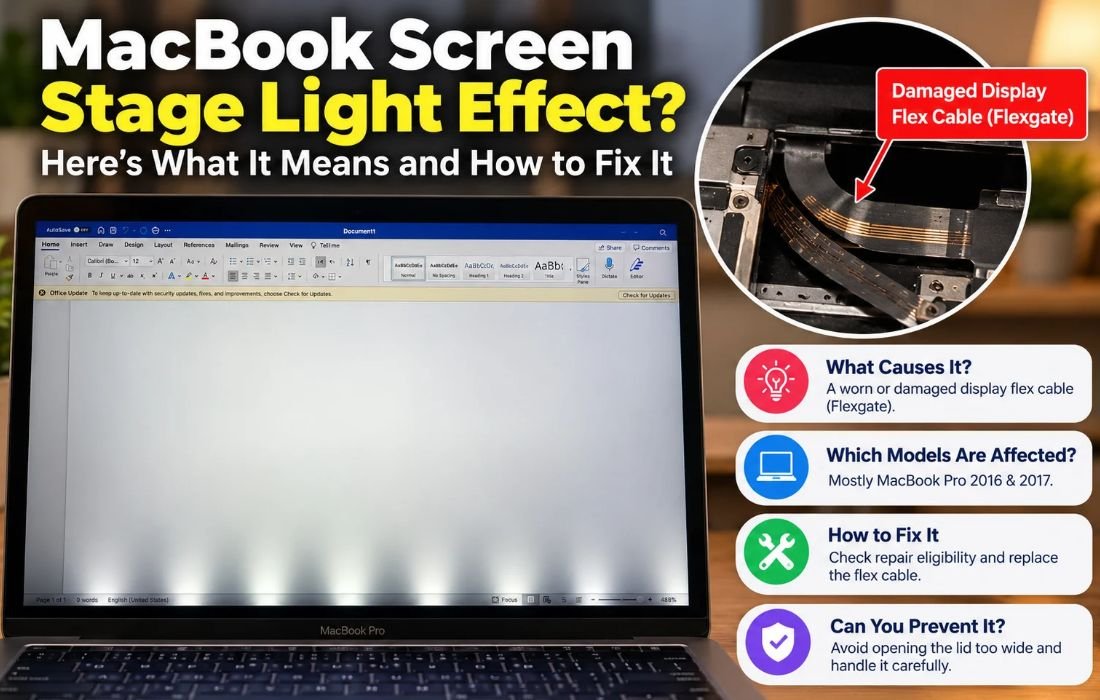
The short answer
That glowing band or dim patch near the bottom of your MacBook screen, sometimes called the “stage light” effect because it looks like footlights shining up from the edge of the display, is almost always a sign of a worn or damaged display flex cable. This is widely known as “Flexgate,” and it mostly affects MacBook Pro models from around 2016 and 2017, though a few other years have seen isolated reports too.
What the effect actually looks like
- A bright, uneven strip of light along the bottom edge of the screen
- Patches that look dimmer or darker than the rest of the display
- The effect getting worse the wider you open the lid
- Flickering or a curtain like shadow that shifts as you adjust the screen angle
Why it happens
When Apple redesigned the MacBook Pro in 2016, it also shortened the thin ribbon cable that connects the display to the logic board, leaving it almost no slack. That cable flexes slightly every time the lid opens and closes. With less slack, the bend happens at a much sharper angle in a smaller space, putting far more repeated stress on the same few millimeters of ribbon than older, longer cables experienced.
Over months or years of normal use, that repeated flexing fatigues the copper traces inside the cable, similar to how a wire coat hanger eventually snaps from being bent back and forth. Once enough traces break, the backlight signal becomes unreliable, producing the uneven brightness at the bottom of the screen. Left unaddressed, the display can eventually fail to light up at all.
Apple never issued a formal recall, but public pressure, along with a widely cited teardown pointing to the shortened cable as the likely culprit, led Apple to quietly extend service coverage for some affected units.
Which MacBooks are affected
This issue is most associated with the 2016 and 2017 MacBook Pro (both 13 inch and 15 inch, with and without Touch Bar):
- MacBook Pro 13 inch, 2016, with and without Touch Bar
- MacBook Pro 15 inch, 2016
- MacBook Pro 13 inch, 2017, with and without Touch Bar
- MacBook Pro 15 inch, 2017
Apple lengthened the cable slightly starting with 2018 models, which cut down on reports, and later hinge and cable redesigns reduced it further still. Any laptop can eventually develop similar wear from a folding hinge, but this specific, well documented pattern belongs mainly to the 2016 and 2017 generation.
How to check your model and repair eligibility
Click the Apple menu and choose “About This Mac” to see your exact model year and serial number. Enter that serial number on Apple’s support site to check whether your unit qualifies for a repair program. This takes a minute and can mean a free fix instead of a paid one.
How to fix it
- Rule out software first. Restart the machine fully, adjust brightness up and down, and connect an external display. If the external screen looks fine, the problem is in the built in display assembly, not your settings.
- Check the Apple repair program. As noted above, some affected units qualify for free or discounted repairs even outside the standard warranty window.
- Get the flex cable replaced. If no program applies, the real fix is a cable replacement, sometimes bundled with a full display swap depending on how the shop handles it. The connectors involved are small and close to the logic board, so this is not an easy first time DIY project.
- Consider an independent repair shop. For older machines outside any program, a shop that specializes in Apple logic boards can often replace just the cable for less than Apple’s full display assembly price. Ask directly whether they replace the cable alone.
Comparing your options
| Option | Typical cost | Best for |
| Apple repair program | Free or discounted | Eligible serial numbers |
| Apple out of warranty repair | Full display assembly price | Wanting official parts and warranty |
| Independent shop, cable only | Below Apple’s assembly price | Older machines with no program coverage |
| DIY replacement | Cost of the part only | Experienced hobbyists only |
Get a couple of quotes before committing, especially if a shop insists the whole display needs replacing rather than just the cable.
Can you prevent it from happening again
- Avoid opening the lid past its natural resting angle
- Handle the lid by the corners rather than pulling from the center
- Treat a newly repaired cable the same way, since it can wear out again over enough years of use
Quick FAQ
Is this covered by AppleCare? Yes, if you are still within coverage, this is treated as a hardware defect.
Will a software update fix it? No. This is a physical cable issue that macOS updates cannot resolve.
Can I use an external monitor as a workaround? Yes. Working in clamshell mode with an external display sidesteps the bad section of the screen, though it is not a permanent fix.
Does this affect MacBook Air models too? It is far less common there, since the Air’s hinge and cable routing differ from the affected Pro generation.
Is my data at risk? No. This only affects the display connection, though you should still back up before sending a machine in for repair.
The bottom line
A stage light effect is annoying, but it is also one of the better understood MacBook problems, with a known cause, known affected models, and a predictable fix. Check your serial number against Apple’s repair program first, rule out anything simple, and get a couple of quotes if a paid repair is needed. Acting sooner rather than later tends to keep the fix simpler, since a failing cable can eventually take the whole display down with it.
Also Read : Apple Announces Faster, More Powerful Non-Intel Macs.