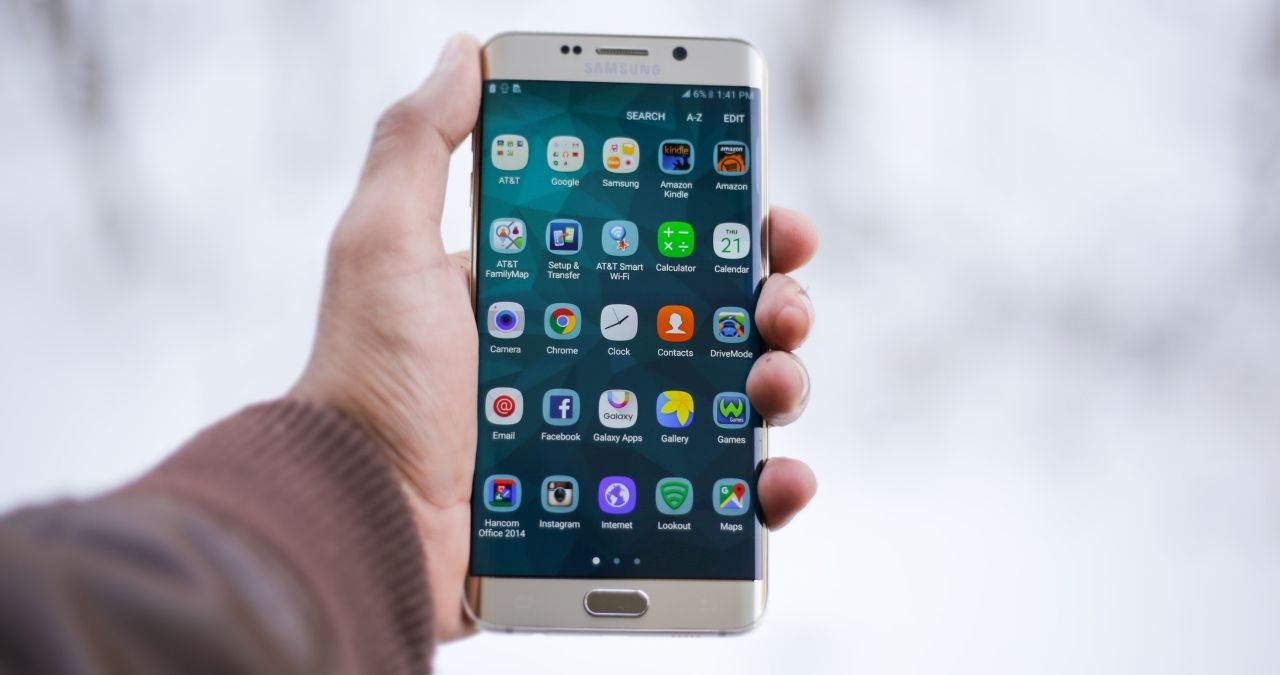
Several Android users frequently remove apps from the recent-apps screen, thinking it helps with battery saving, RAM boosting, and speeding up the phone, which justifies their action since fewer apps on the screen means fewer apps are functioning at the same time behind the scenes.
However, the recent-apps screen does not work in such a manner.
Android operates automatically to handle memory and processes without any input from users. An application which is displayed on the active applications screen may just be sitting dormant in memory and not operating in the background at all. In the event that resources are required, Android is able to retrieve them from the less important processes automatically.
However, that is not to say that every application is guaranteed to be dormant. There are apps which carry on the work of, for example, providing navigation and playing music, and continue functioning in the background.
So, does closing apps save battery?
In general, repeatedly shutting down applications does not help in improving battery performance. Nonetheless, closing or stopping a particular application can help if the application is using too many resources or malfunctioning.
What Happens When You Swipe an App Away?
When you access the recent-apps screen, Android displays applications that were recently run, allowing for their quick retrieval.
Depending on the phone you have, this screen can be opened by swiping up from the bottom and holding, or by pressing the Recent Apps button.
After you have done so, the options available are to either swipe an app away individually or tap on Clear all.
Nonetheless, just because an app shows up in the list does not imply that it is functioning actively and using battery.
Android applies several process states to determine the priority of the application. An app that was recently opened can be kept in cache so it will be readily accessible. Android can delete cached apps to free memory.
This means most of the time there is no need to clear the apps just because you see them in the Recent Apps list.
Does Closing Apps Save Battery?
In most instances of daily use, not in any significant or dependable manner.
When an app is in a cached condition, it does not have to complete the same amount of tasks as an app that is in active use. Android does limit how much work is done in the background and chooses which processes are eligible for system resources.
When an app is closed frequently followed by being reopened shortly thereafter, it can force the phone to do extra work for running the app. These processes can involve loading the app, restoring its state, accessing memory storage, establishing a network connection, etc.
Therefore, closing an app all the time is not a good idea if the app is used often.
The more useful question isn’t:
How many apps are in my Recent Apps list?
It is:
Which apps are actually using my battery?
If one application is responsible for unusually high battery consumption, check your phone’s battery settings and investigate that application instead of clearing every app.
Does Keeping Apps in Recent Apps Use RAM?
Certainly, an application can stay linked with a cached process to utilize memory, but it doesn’t mean that the phone will eventually run out of RAM.
Android is made in such a way that it utilizes the available memory effectively. An application can be cached for faster switching between applications.
When there is a need for memory by a different application, Android can clear the cached processes of lesser priority, thus recovering more memory.
In one of the conversations you shared, one of the developers accurately described the concept: cached information from an application enables you to start the application without redeveloping it all over again. However, in Android, cached processes can be removed if necessary resources are required.
Hence, large numbers of apps in Recent Apps do not indicate that there is some problem with your phone.
Can Closing Apps Make Your Phone Faster?
In general, clearing Recent Apps will not help your Android phone speed up.
When your phone has enough free resources, Android can keep recently used apps in memory. This means that the next time you start one of them, the user will not have to wait for the app to load.
This is particularly important when it comes to big applications such as games, social media applications, browsers, or office applications.
If your phone is functioning slowly, it is better to find the root cause.
For example, check:
- Available storage
- Battery usage by individual apps
- System and app updates
- Apps that repeatedly crash
- Excessive background activity
- Resource-intensive processes
Clearing Recent Apps shouldn’t be your first troubleshooting step unless a specific application is causing a problem.
What About Apps That Use GPS?
This is where the distinction between being in Recent Apps and actively running in the background becomes important .
An app appearing in your recent-apps list doesn’t automatically mean that it is continuously using GPS.
For example, opening a maps application may use your location while you’re actively viewing the map. If you close the active navigation session, the location behavior can change. On the other hand, an ongoing navigation task may continue using location services even when the app isn’t occupying the entire screen.
The information that you’ve shared also indicates that the current status of the app regarding how it was operating in Recents is inadequate to conclude whether it is indeed using location services right now.
So, in case your concern is about how location services work, it is better to check the permission for location access and the background activities of the app instead of relying on the Recents screen only.
Do Background Apps Use Mobile Data?
Some can.
Not every application sitting in Recent Apps is continuously communicating with the internet. However, apps can perform legitimate background tasks such as:
- Synchronizing account information
- Uploading photos or files
- Receiving messages
- Downloading content
- Updating information
- Performing scheduled tasks
The background activity is limited by Android. Therefore, just because you see an app on Recent Apps doesn’t mean that it is consuming much data.
If you worry about data usage, look at your data usage per app on your phone.
The material you provided suggests tackling the problem from the resource you are concerned about: permissions for privacy, battery settings for energy consumption, and background data settings for data consumption.
What About Music, Downloads and Other Ongoing Tasks?
Some background activities are different from simply leaving an app cached.
For example, an application may be:
- Playing music
- Downloading a file
- Uploading content
- Running navigation
- Performing another ongoing task
Such activities are allowed to run according to Android’s background execution policies.
It is stated in the discussion that necessary ongoing activities can be run even after the interface of the main app is exited, and possibly supported by a notification that indicates that the task is still active.
This is why you shouldn’t assume that swiping an application away is always the right way to stop an ongoing task.
If something important is still running, check the app itself and your notification panel before closing it.
Swiping Away an App Isn’t the Same as Force Stop
This is an important distinction.
Swiping an app away from Recent Apps removes its recent task from the app switcher.
Force stop, however, is a stronger action used to stop an application when it is misbehaving.
For example, if an app:
- Freezes
- Stops responding
- Keeps crashing
- Gets stuck
- Behaves unexpectedly
then closing or force-stopping the application can be a sensible troubleshooting step.
One of the discussions you provided also describes closing an app as useful when it enters an error state because restarting it can clear the problem and allow it to start again normally.
So don’t confuse normal app switching with troubleshooting.
When Should You Close an Android App?
There are legitimate reasons to close an application.
When an app freezes
If the app stops responding, close it and reopen it.
When an app repeatedly crashes
Restarting the application may temporarily resolve the problem. If it continues crashing, check for updates or investigate the application’s settings.
When an app is consuming unusually high battery
If your battery settings show that a particular application is using an abnormal amount of power, investigate that app rather than closing everything.
When an app is using excessive mobile data
Check the application’s data usage and restrict background data if appropriate.
When an ongoing activity needs to stop
If an application is performing a task you no longer need, such as navigation or a download, stopping that activity can be appropriate.
When you want a cleaner Recent Apps list
There’s nothing wrong with clearing the list because you prefer a cleaner interface.
Just don’t confuse a clean Recent Apps screen with better battery life or better performance.
Should You Use “Clear All” Every Day?”
You can, but you don’t need to.
If you like having only a few applications visible in the Recent Apps screen, using Clear all is a personal preference.
It isn’t necessary to perform this action every few minutes to maintain your phone.
Android is already capable of deciding when cached applications should be removed from memory.
In fact, one of the developer-oriented responses in the discussion summarized the basic principle as allowing Android to handle memory and process management rather than manually micromanaging every application.
What Should You Do Instead to Save Battery?
If battery life is your concern, there are more useful things to check than constantly clearing apps.
Check battery usage
Open your phone’s battery settings and identify applications that are consuming an unusually large percentage of power.
Restrict problematic apps
If a particular application doesn’t need unrestricted background activity, check its battery and background-use settings.
Review location permissions
Apps that don’t need continuous location access shouldn’t necessarily have unrestricted location permission.
Check mobile-data usage
If an application is using too much data in the background, review its network settings.
Use Battery Saver
Android’s built-in power-saving features can reduce background activity and help extend battery life when you need it.
Reduce screen brightness
The display is often a significant source of power consumption, especially when the phone is used for long periods.
Keep apps and Android updated.
Updates can include performance improvements and fixes for applications that consume excessive resources.
These approaches target the actual source of battery consumption instead of treating every application in Recent Apps as a problem.
Does Closing Apps Damage Your Battery?
No, you shouldn’t say that manually closing apps directly “damages” the battery.
That claim is too strong.
Repeatedly closing and reopening applications can cause additional work and potentially increase energy consumption compared with simply allowing Android to manage cached apps. But that is different from saying the practice physically damages the battery.
Battery health is affected by factors such as charge cycles, temperature, charging behavior, battery age, and overall usage.
So the more accurate advice is:
Don’t repeatedly close apps for the purpose of protecting your battery. It isn’t necessary.
The Bottom Line
Closing apps on Android isn’t a magic battery-saving trick.
An app appearing in the Recent Apps screen doesn’t automatically mean that it is actively consuming significant battery, RAM, mobile data, or GPS resources. Android manages application processes and can reclaim memory when it needs it.
At the same time, some apps can perform genuine background work. Navigation, audio playback, downloads, synchronization, and other ongoing activities can consume resources even when you’re not actively looking at the application.
That’s why the best approach is to manage the problem, not the Recent Apps list.
If your phone works normally, let Android manage its apps.
If one application is draining your battery, consuming excessive data, using location unexpectedly, freezing, or crashing, investigate that specific application.
For everyday use, you don’t need to constantly clear your Android apps to save battery or free RAM.
Also Read : Hey Spotify Is The New Voice Assistant On iPhone And Android